

Federation
Federation links two livematrix servers the way a four-wire links two intercom systems, for example a truck to the broadcast centre. A link carries channels. On each server, the link shows up as a sound card on the Built-in tab of Bridges. You patch its channels to an external user, a party line or a feed with ordinary bridge lines.
Typical uses:
- The truck’s Production party line patched to the centre’s Production, so both crews talk on one line.
- A truck party line patched to a centre user Truck, which the centre’s operators key like any other user.
- A programme feed sent from the centre to the truck.
Host and federated server
Section titled “Host and federated server”One server hosts the link. It defines the channels and accepts the connection. The other, the federated server, connects to it. Make the host the server that the other one can reach, such as the one with a public address, an edge name or a fixed address on the shared network. Audio works the same whichever side hosts.
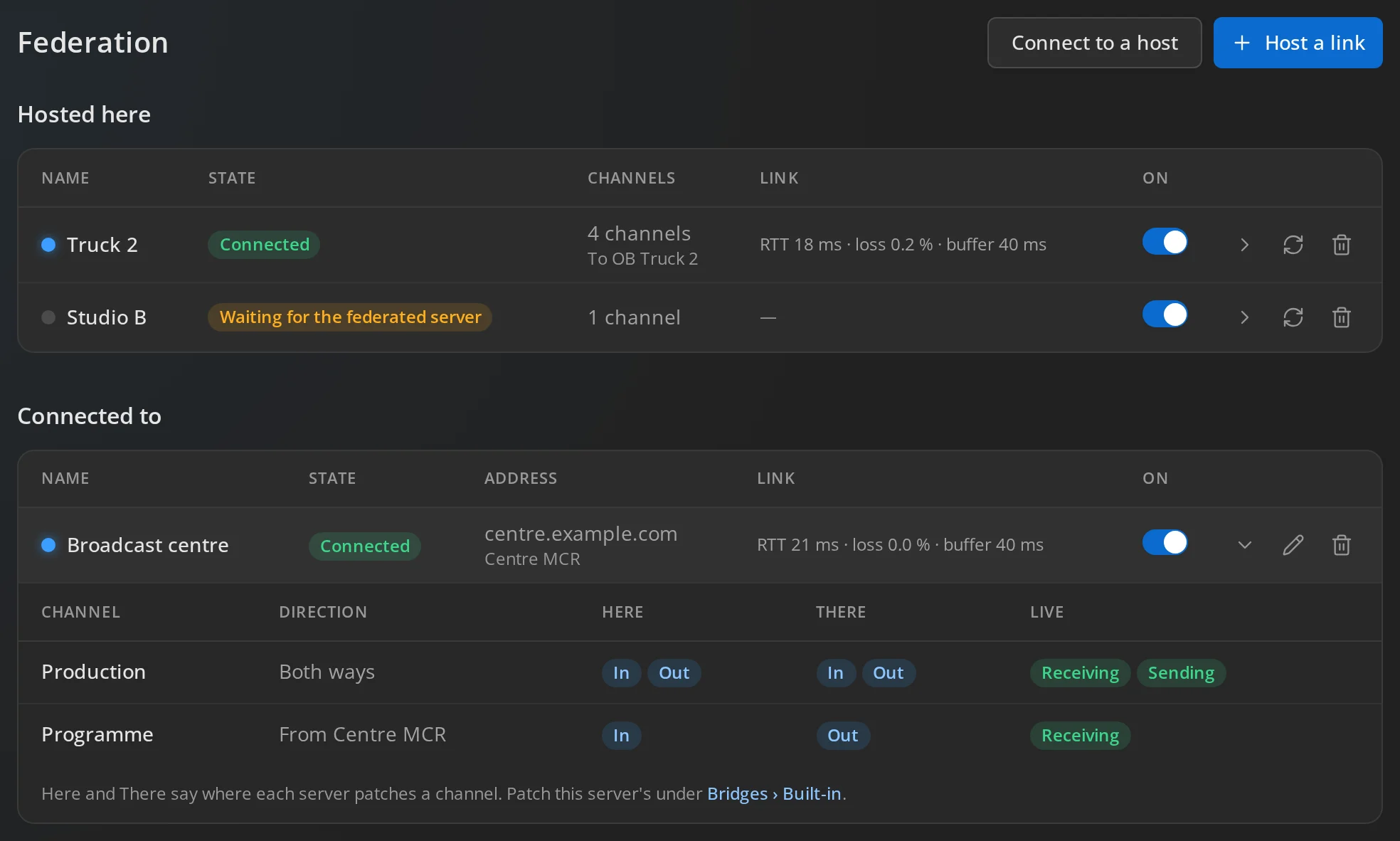
Open Setup → Federation. Hosted here lists the links this server hosts; Connected to lists the hosts it connects to. A server can do both, with as many links as you need.
Set up a link
Section titled “Set up a link”- On the host, press Host a link. Under Name, give it this server’s name for the other one, such as Truck 2. Check This server’s address, then press Create link.
- Press Copy to copy the connection string, and press Done. The string holds the link’s key, and the page shows it only this once.
- On the federated server, open Setup → Federation, press Connect to a host, paste the Connection string and press Connect. Within seconds, the link shows Connected on both servers.
- On the host, open the link’s Channels and add them (see Channels).
- On both servers, patch the channels under Bridges (see Patch a channel).
Guard the connection string like an administrator password. Whoever has it can connect a server to the link and send and receive on its channels. Send it to the other server’s administrator over a channel you trust.
Channels
Section titled “Channels”Only the host defines channels. Open a link’s Channels under Hosted here, type a name under New channel, choose its directions and press Add channel:
- To the other server: audio from the host to the federated server.
- From the other server: audio from the federated server to the host.
- Both: a four-wire.
Add, rename, redirect and remove channels while the link runs. The other channels keep running. The federated server sees the list under Connected to, with each channel’s Direction, but cannot change it.
Patch a channel
Section titled “Patch a channel”Patch each channel on both servers, as you would plug in both ends of a cable.
- Open Bridges, tab Built-in, and press Add line.
- Choose its Target: an external user, a party line or feed, or To / from a user.
- For the Device of each leg, choose the link, shown as Link: and the link’s name. Choose the Channel by name. The line saves by itself once it has a target and its devices.
Each server sees the directions from its own side, as with a sound card:
- Input is audio arriving from the other server, into the target.
- Output is the target’s audio leaving for the other server.
When you choose a link channel for the input, the output takes the same channel. A party line patched both ways on both servers joins the two lines into one. Gain, level meters, the Enabled box and the test tone work as on a sound card, as described under Bridges.
A direction carries audio only when the host defines it, the sending server patches the channel’s output and the receiving server patches its input.
Example: a director in the truck, a producer in the studio
Section titled “Example: a director in the truck, a producer in the studio”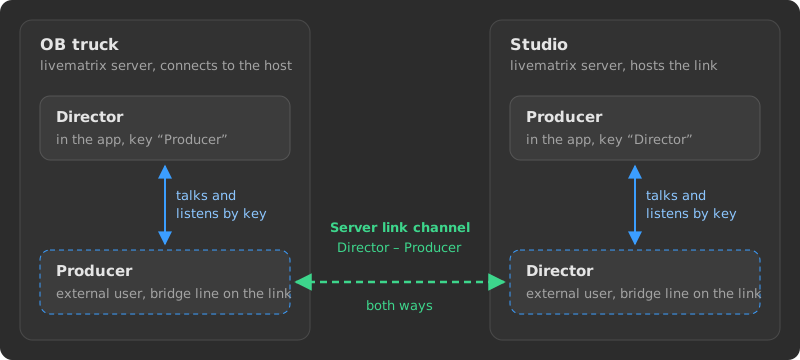
The director works on the truck’s server and the producer on the studio’s. Neither is a user on the other server, so each server gets a stand-in for the other person, and one link channel joins the two stand-ins.
- On the studio, which hosts the link, add a channel Director – Producer that goes both ways.
- On the truck, add a user Producer with no password. Under Bridges, Built-in, add a line on it: Target External users → Producer, input and output both on the link device (Link: …), channel Director – Producer.
- On the studio, do the same the other way round: a user Director, and a line on it patched to the same channel.
- Give the director a key to Producer and the producer a key to Director. Allow Talk and Listen on both, and turn Default on for Listen so each hears the other without pressing anything.
When the director presses Talk on Producer, the truck sends their voice to the external user Producer, whose output goes over the link. On the studio it arrives as the external user Director talking, which the producer hears on their Director key. The reply takes the same channel back. Each person keeps their own keys, priorities and mic on their own server.
To put a whole production team on one talk path instead, patch the channel to a party line on each server, for example Production in the truck and Production in the studio. For a talkback the producer always hears, without a key, patch it To / from the producer on the studio.
Manage a link
Section titled “Manage a link”On the host, under Hosted here:
- Click the name to rename the link. The name is only this server’s.
- The switch turns the link off and on. While it is off, the federated server cannot connect.
- New key makes a new connection string, with the address you give. The old key stops working at once, and the federated server stays disconnected until it gets the new string.
- Delete link disconnects the other server and removes the link and its channels.
On the federated server, under Connected to:
- The switch disconnects from the host and reconnects.
- Change address reconnects to the host at another address, with the same key.
- Disconnect and forget removes the host from this server. Bridge lines on its channels stay configured. To connect again, paste the connection string again, or a new one.
While a link is down, its bridge lines stay attached, carry silence and show Link down under Bridges. They resume by themselves when the link is back. The federated server keeps trying to connect, every few seconds at first and then every 30 seconds.
Backups include the links, their channels and the bridge lines that patch them.
Licence and audio slots
Section titled “Licence and audio slots”A link’s bridge lines use no licence ports on either server. Audio that leaves through a sound card or an app counts on the server it leaves, as described under Console and licence. A channel patched on a party line or feed still takes one of the server’s audio slots.